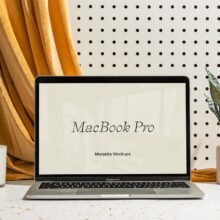
Laptop Screen Website Mockup: The Ultimate Guide for Web Designers
In today’s digital world, visuals are everything. Whether you’re a web designer, freelance developer, or digital marketer, the way you present a website matters just as much as how you build it. One of the most effective tools for presenting web designs is the laptop screen website mockup — a realistic visual representation of a website displayed on a laptop screen. This technique allows stakeholders to see how a site will appear on a real device before it’s built, enhancing presentations, portfolios, and client pitches alike.
What Is a Laptop Screen Website Mockup?
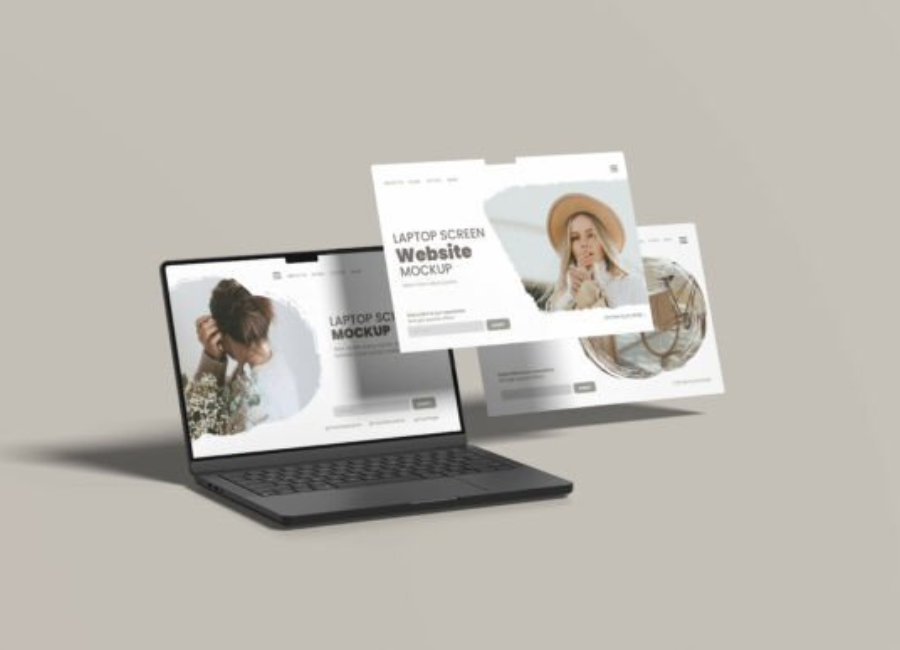
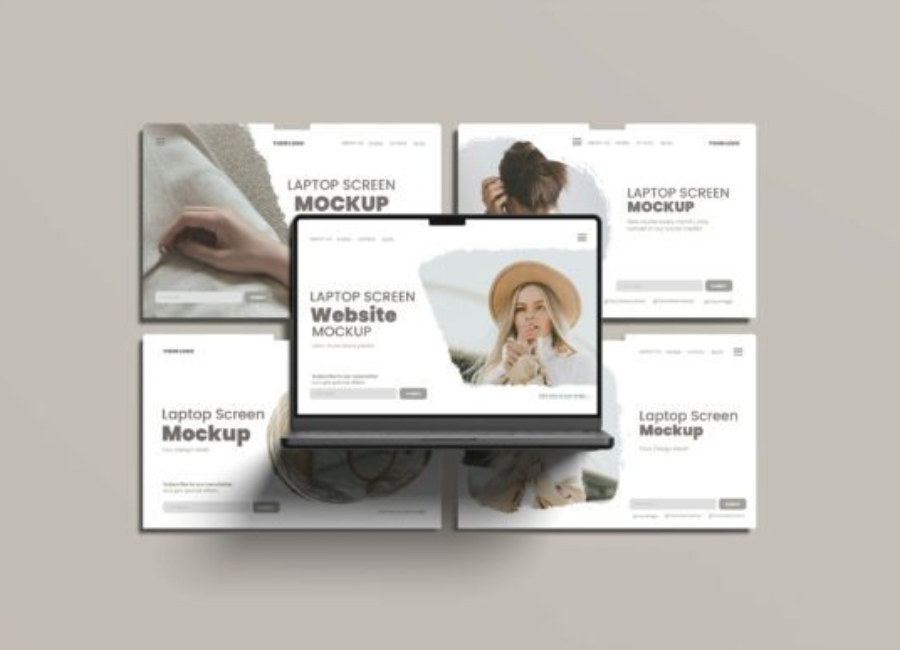
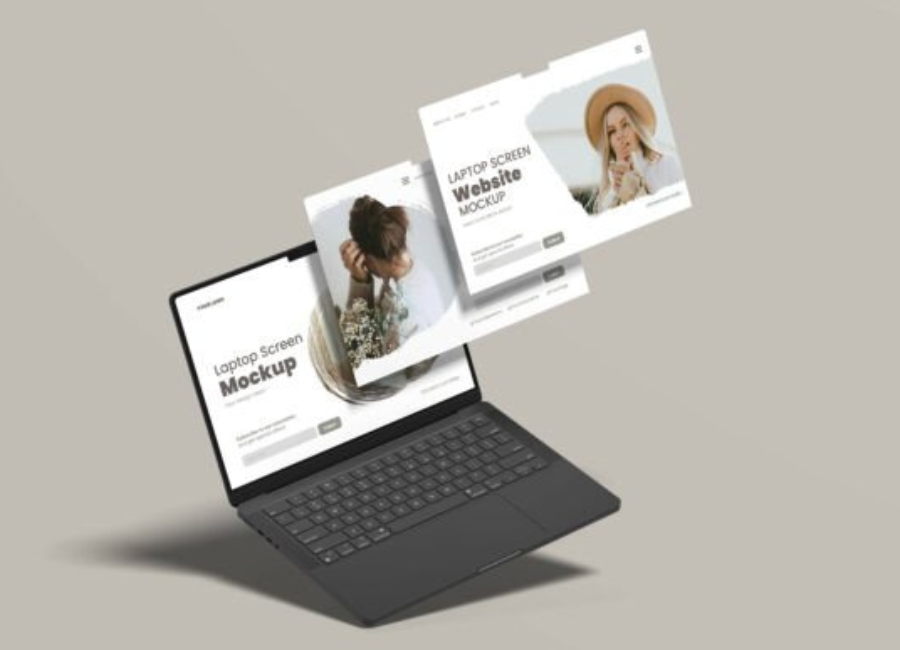
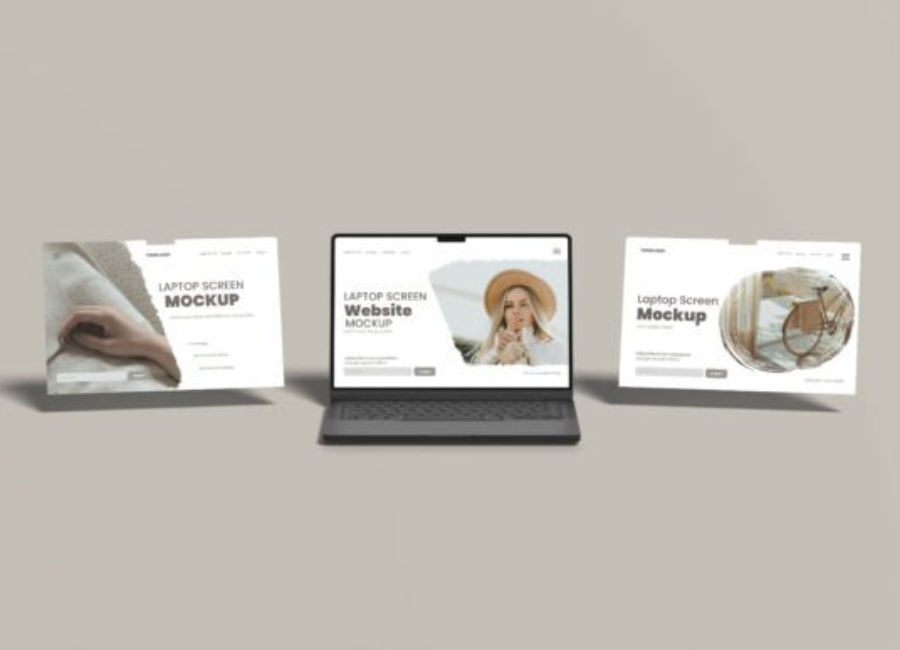
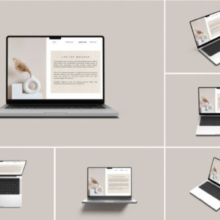
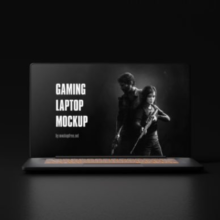
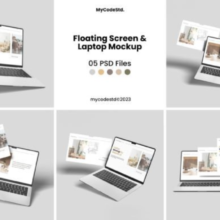
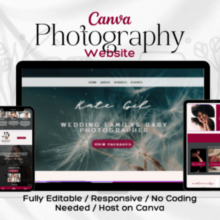
A laptop screen website mockup is a graphic design template where a laptop frame is used to showcase website designs, user interfaces, or web pages in a lifelike context. Rather than merely showing a screenshot, a mockup places your website design within a laptop screen to simulate real usage. These mockups are usually available as PSD (Photoshop) files, PNGs, or web-based templates that allow you to easily swap in your own content.
Most mockups include smart objects or editable layers, enabling you to insert your website or UI screenshot, adjust reflections, lighting, and perspective, and export a polished image for your portfolio or presentation.
Why Laptop Website Mockups Matter
Laptop mockups are more than just nice visuals — they serve real practical purposes:
1. Professional Presentation
Clients and stakeholders often struggle to imagine how a flat screenshot becomes a functioning website. A laptop mockup situates the design in a realistic environment, making presentations more compelling and easier to understand.
2. Visual Context
By displaying your website design on a familiar device like a laptop, you give context to your layout, spacing, and visual hierarchy. This helps non-technical viewers appreciate both aesthetics and user experience.
3. Portfolio Enhancement
Design portfolios that include mockups stand out. They demonstrate attention to detail and creativity, offering potential clients a glimpse of how the design feels in action — not just what it looks like.
4. Marketing & Branding
Beyond portfolios, mockups are valuable in marketing materials and social media content. Eye-catching visuals drive engagement and help audiences connect with your work.
Types of Laptop Website Mockups
There are several ways to create and use laptop screen mockups:
1. Photoshop Templates
These are traditional, high-resolution PSD files with editable layers and smart objects. You open the file in Photoshop, insert your web design into the smart object layer, and adjust effects such as shadows and reflections.
2. Online Mockup Generators
Web tools like Canva, Pixelcut, Mokkify, and Pacdora let you upload your screenshot and place it inside a laptop frame without needing Photoshop. These platforms often have drag-and-drop interfaces, built-in templates, and downloadable results in PNG or JPG format.
3. UI/UX Design Tools
Software like Figma, Sketch, and Lunacy includes frame or mockup components that allow designers to place website designs inside laptop screens directly within a design system. This method is useful for collaborative design workflows.
Laptop mockups are especially helpful in the following scenarios:
Design Reviews
Before development, show your design team and stakeholders exactly how pages should look and behave.
Client Presentations
Give clients a sense of how their site will feel in real life, increasing confidence and reducing miscommunication.
Portfolios
Enhance your online portfolio with realistic visuals that attract attention from potential clients or employers.
Marketing Assets
Use mockups in promotional materials, blog posts, and social media to highlight your work in a visually appealing way.
How to Create a Laptop Website Mockup (Step by Step)
Here’s a practical workflow you can follow:
Step 1: Choose Your Mockup Tool or Template
Decide whether you want to use a traditional PSD template or an online tool. Photoshop gives you maximum control, while online tools are faster and more accessible, especially for beginners.
Step 2: Prepare Your Website Screenshot
Take a high-resolution screenshot of your website design. Make sure it’s clean, well-aligned, and reflects the final design you want to showcase.
Step 3: Insert the Screenshot
In PSD: Open the template, locate the smart object layer, and paste your screenshot. Save and close to update the mockup.
Online Tool: Upload your screenshot to the online mockup editor, then adjust its position and size to fit the laptop screen area.
Step 4: Customize Background and Effects
Many tools allow you to adjust background colors, shadows, reflections, and even add additional elements like desk props or lighting to enhance realism.
Step 5: Export and Use
Export your final mockup in a high-resolution format suitable for web or print. Save different versions if needed for various platforms (e.g., portfolio banner, social media post).
Tips for Great Laptop Mockups
To make your mockups truly effective:
Use High-Quality Screenshots
Blurry or low-resolution images reduce the impact of even the best mockup.
Context Matters
Choose backgrounds and settings that match the purpose — sleek and minimal for professional portfolios, cozy and lifestyle-focused for branding presentations.
Keep Consistency
If presenting multiple mockups, maintain consistent angles and light sources to avoid visual confusion.
Highlight Key Features
If a specific part of your design matters (e.g., navigation, call-to-action), ensure the mockup view clearly shows it.
Common Mistakes to Avoid
Even experienced designers can fall into these pitfalls:
Using generic templates without customization: This can make your work look less unique.
Ignoring device context: Showing a design without context can mislead about scale and spacing.
Cluttered backgrounds: Too many elements around the laptop screen can distract attention from your actual design.
Tools and Resources for Laptop Website Mockups
Here are some popular tools and resources (many of them free or freemium):
Canva: Easy online generator with drag-and-drop features.
Pixelcut: AI-powered mockup generator with customizable scenes.
Pacdora: Online mockup creation platform with multiple laptop models.
Mokkify: Customizable laptop and device mockups with background options.
Lunacy: Desktop design tool with built-in device mockups.
PSD Templates: Free laptop website mockups available on sites like DG Mockup or Free-Mockup.com.
Conclusion
Laptop screen website mockups are a powerful way to elevate your web design presentations. They add realism, context, and visual appeal — helping clients, stakeholders, and audiences better understand your work before it goes live. Whether you’re creating a professional portfolio, pitching to a client, or designing for marketing purposes, mastering mockups can make a significant difference in how your designs are perceived. With a variety of tools and templates available, creating stunning, professional-looking laptop mockups has never been easier — even for beginners.