Laptop Screen Display Mockup: A Complete Guide for Designers and Marketers
In the world of digital design, presentation is everything. Whether you’re showcasing a website, app interface, dashboard, or creative digital layout, a laptop screen display mockup is one of the most effective ways to present your design in a professional, realistic context. Unlike flat screenshots or raw UI exports, a mockup frames your design within a physical device — giving clients, stakeholders, and users a tangible sense of how the final digital product will appear in the real world.
What Is a Laptop Screen Display Mockup?
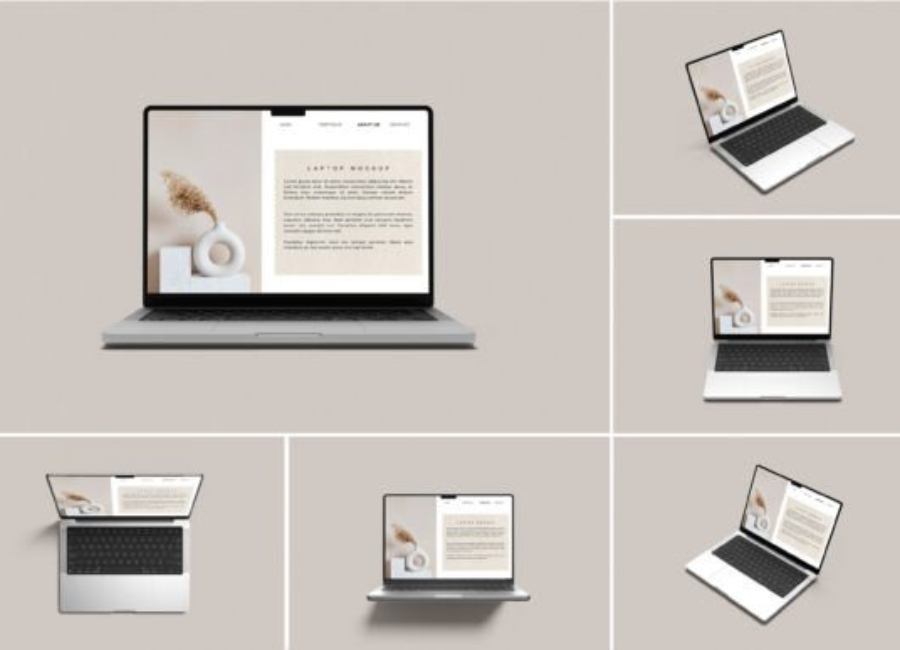
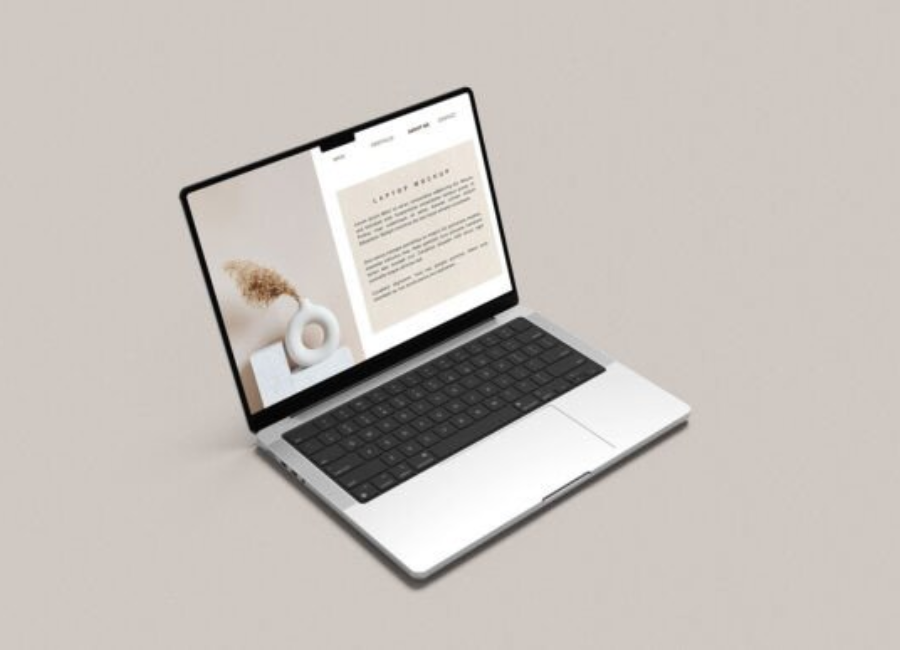
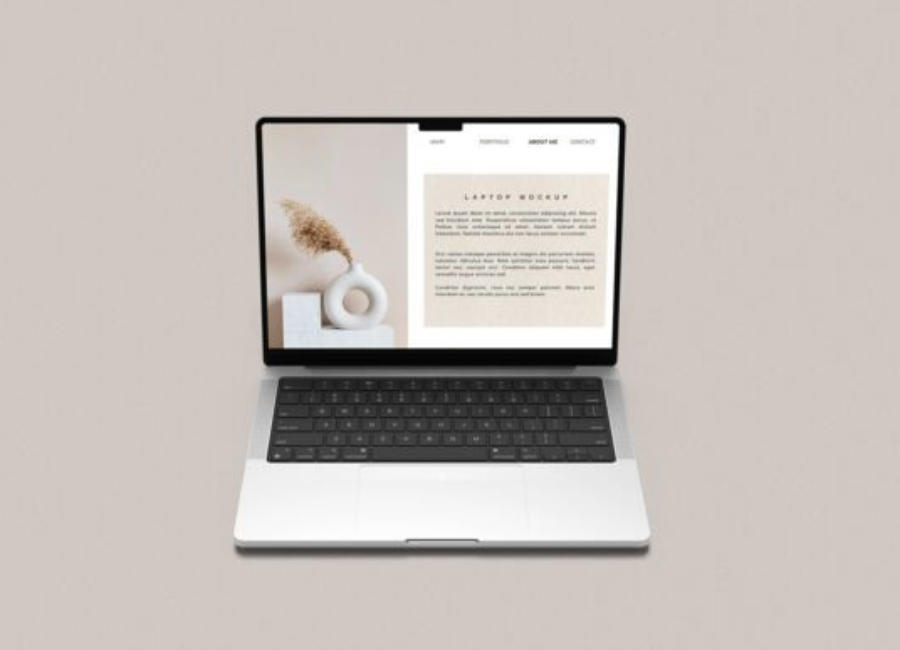
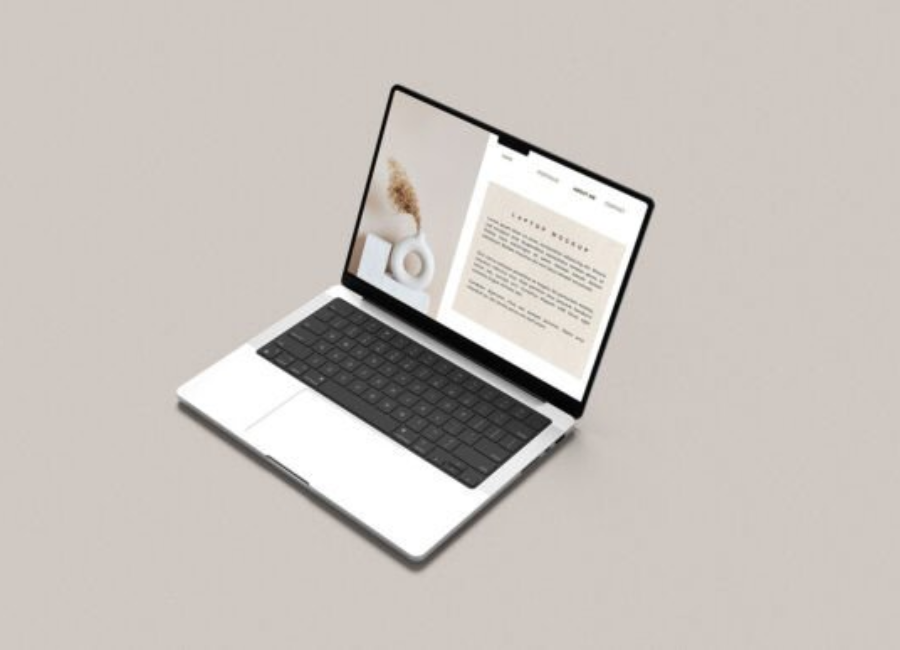
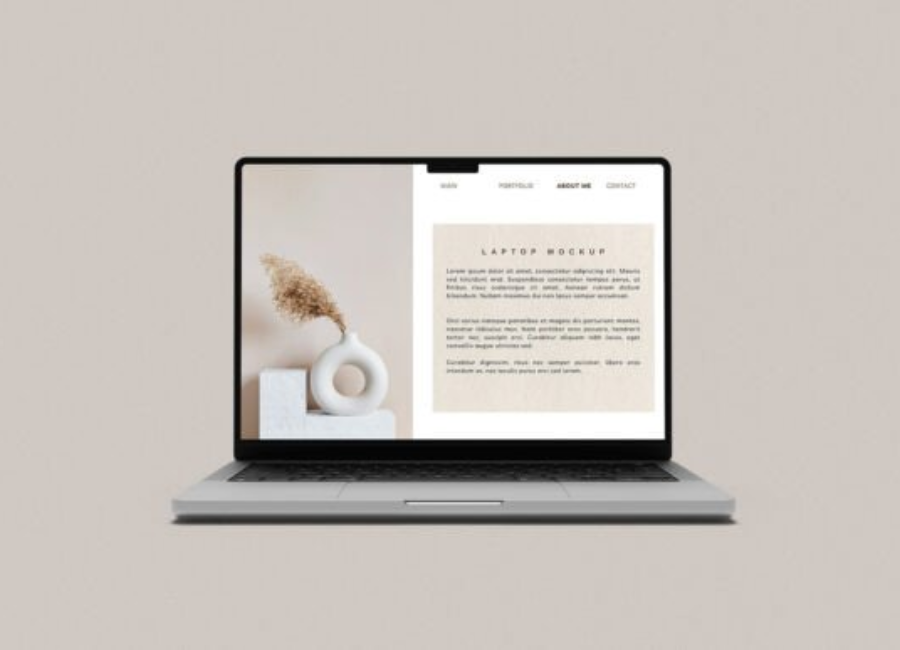
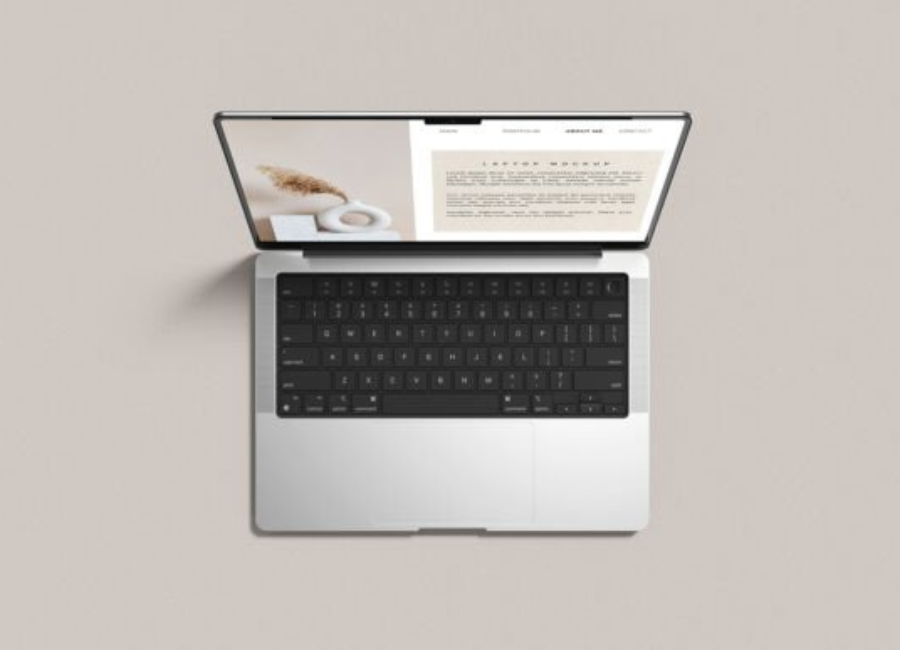
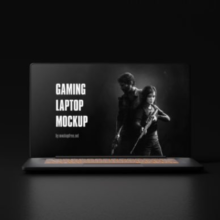
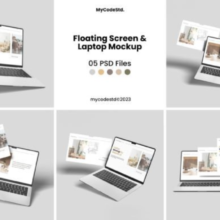
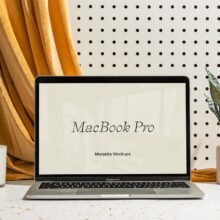
A laptop screen display mockup is a visual representation or template that places your design inside a laptop frame. It’s typically a high-resolution graphic — often in PSD, PNG, or online editable format — that shows a believable, perspective view of a laptop with your screen content embedded. Designers can easily swap out the default placeholder image in the laptop screen with their own UI design, app layout, website homepage, or other content.
Unlike raw screenshots, mockups make your work appear polished and professional. They help viewers imagine how the design will function in real life, and they’re particularly useful in portfolios, proposals, pitch decks, and marketing materials. Whether you’re a freelance designer seeking to impress clients or an in-house marketer preparing a product launch, mockups elevate your visual storytelling.
Why Use Laptop Mockups in Design Projects?
1. Visual Realism and Context
Laptop mockups provide a realistic environment for your design. Clients and stakeholders often respond better when they see UI elements in context — such as inside a sleek laptop screen on a desk — rather than as isolated graphics. This tangible presentation style can bridge the gap between abstract design and real-world application.
2. Professionalism in Portfolios
A well-chosen mockup adds professionalism to portfolios. High-quality mockups make your work look thoughtful and well-presented, helping you stand out in competitive landscapes — whether you’re showcasing UX designs, web pages, or app interfaces.
3. Versatility
Mockups aren’t just for static images. Today’s tools allow you to create dynamic mockups, animated presentations, or even interactive previews that help clients click through screens, enhancing understanding and engagement with your work.
Types of Laptop Screen Mockups
Laptop mockups come in several formats, each suited for different use cases:
**1. PSD (Photoshop) Mockups
These are layered files that use smart objects — placeholders where you can drop your design. Once you insert your image into the smart object layer and save, the laptop frame updates automatically with your content. This method gives high control over shadows, reflection, and perspective.
**2. Browser-Based Mockup Tools
Online tools allow you to upload designs and produce mockups directly in your browser. These platforms usually support drag-and-drop, instant edits, and export to high-resolution PNG or JPG formats — without the need for heavy software like Photoshop.
**3. Template Libraries and Creative Marketplaces
Design communities such as Dribbble and similar sites offer free and premium mockup templates featuring modern laptop styles, varied angles, lighting settings, and aesthetic themes. These can be effective for specific branding or project needs.
Key Elements of a Strong Mockup
To make the most impact when presenting your design through a laptop mockup, consider the following features:
**1. High Resolution
Your mockup should be high resolution (ideally 300 DPI or more) so it looks crisp on all screens and in print. This is especially important if you plan to use mockups in brochures, slide decks, or portfolio prints.
**2. Realistic Lighting and Shadows
Good mockups use realistic lighting and shadows to create depth and dimension. Avoid flat cutouts — the more life-like the environment, the more convincing the presentation.
**3. Perspective and Angle
The angle of the laptop can influence how viewers perceive your design. Straight-on views work well for clarity, while angled views add visual interest and dynamic appeal. Choose based on your audience and purpose.
**4. Neutral Backgrounds
A clean, subtle background helps the design stand out without distracting the viewer. Many mockup tools allow you to customize backgrounds, desk settings, or even add props for lifestyle contexts.
Here is a practical step-by-step workflow you can follow, no matter your skill level:
Step 1: Choose Your Mockup Style
Decide whether you’ll use a PSD template or an online generator. PSD works best if you want detailed control over lighting, shadows, and layering. Online tools are quicker and great for fast iterations.
Step 2: Prepare Your Design
Before placing your work in the mockup, ensure your UI screen capture or design is finalized and sized correctly. Most templates will include recommended dimensions — use them to avoid distortion or pixelation.
Step 3: Insert Your Design
In PSD: Double-click the smart object layer, paste your design, save, and close. Your content should automatically appear inside the laptop screen with perspective and lighting applied.
In online tools: Upload your image, adjust scale and alignment as needed, and preview the result.
Step 4: Fine-Tune Effects
Adjust shadows, highlights, and reflections if the mockup allows. Subtle enhancements can make your screen pop and improve realism.
Step 5: Export and Use
Export your final mockup in the appropriate format (PNG, SVG, JPG, or PDF). Ensure the resolution suits your presentation medium — high resolution for print, optimized for web for online use.
Best Practices for Mockup Presentations
Align with the Brand
Choose laptop models and backgrounds that resonate with the brand’s identity. For example, minimalist brands may opt for clean MacBook mockups, whereas tech-forward companies might prefer angled, dynamic laptop frames.
Use Consistency
When showcasing multiple screens or pages, keep the angle, lighting, and style consistent. This visual harmony helps viewers compare designs without distraction.
Tell a Story
Don’t just show a static screen — include captions or contextual notes that guide the viewer through the design logic. What problem does it solve? How does the interaction flow? Mockups are visual tools, but storytelling makes them persuasive.
Common Mistakes to Avoid
Using low-resolution mockups — this cheapens the presentation and may mislead about quality.
Neglecting perspective and scale — warping or stretching your UI to fit a mockup improperly can distort the design.
Overloading props or busy backgrounds — too much visual noise distracts from your actual design work.
Future of Laptop Mockups
As design and presentation tools evolve, so do mockups. AI-assisted design platforms and integrated UI toolchains allow designers to embed mockups directly into design systems, automate resizing, and even preview designs dynamically within real devices. These technologies will continue to blur the line between static mockups and interactive prototypes that feel lifelike.
Conclusion
Laptop screen display mockups are an indispensable part of modern design workflows. They provide context, realism, and professional flair, helping designers communicate ideas in a visually compelling way. Whether you’re a beginner creating your first portfolio or a seasoned professional preparing product presentations, mastering laptop mockups will enhance how your work is perceived — making designs not just seen, but experienced.