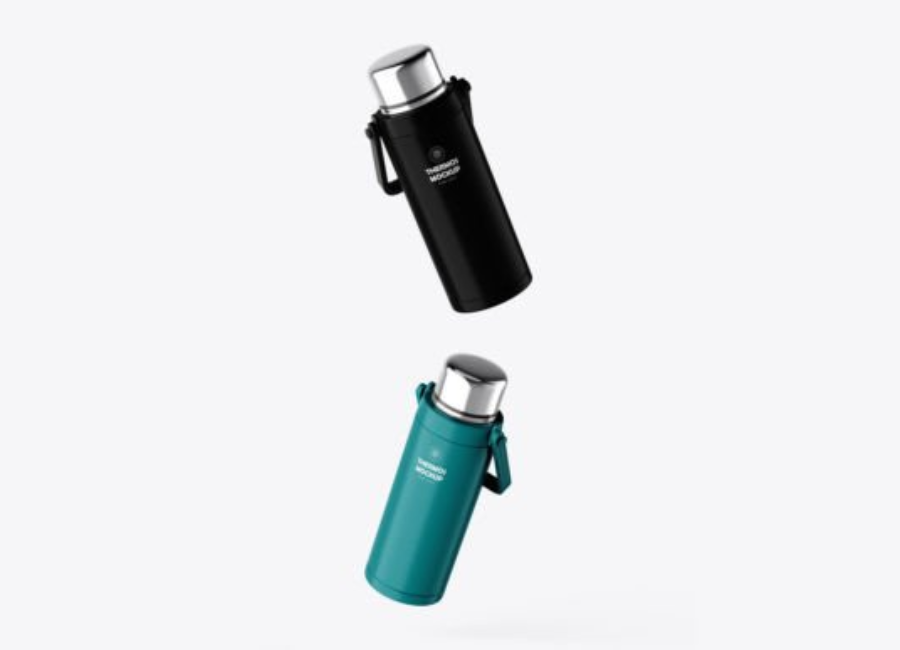
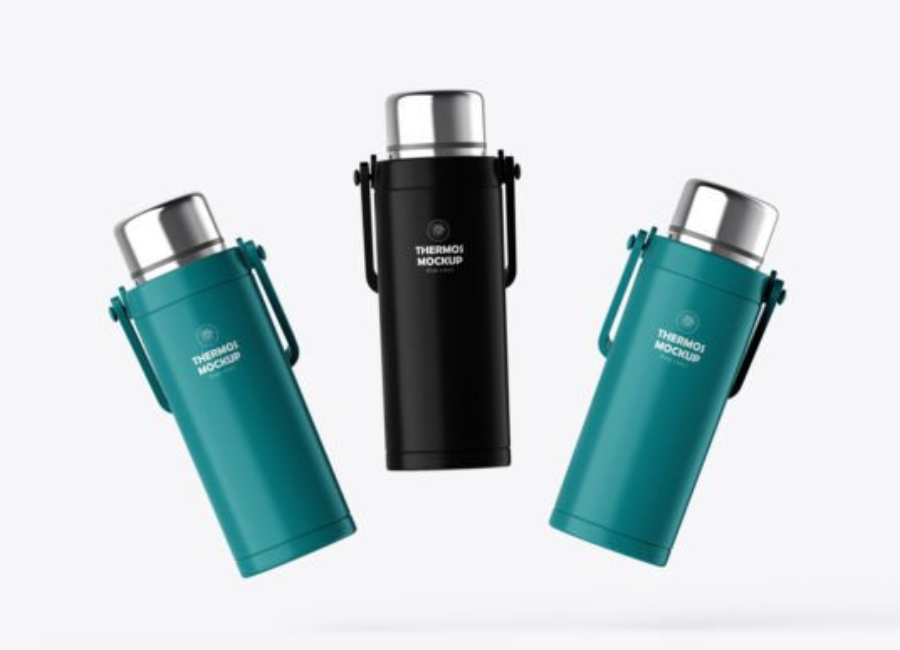
Thermos Portable Water Bottle Mockup: The Ultimate Guide for Designers and Brands
Thermos Portable Water Bottle Mockup In today’s competitive marketplace, how a product looks before it even goes into production matters immensely. Whether you’re a graphic designer pitching a new brand concept or a business owner preparing visuals for e-commerce and advertising, striking product imagery can make or break first impressions. For insulated drinkware such as thermoses and portable water bottles, PSD mockups have become one of the most popular tools for visualizing packaging and branding with realism and professionalism — all without the time and expense of actual photography.
In this comprehensive guide, you’ll learn what a Thermos portable water bottle mockup is, why designers love them, how to use them successfully, and best practices to bring your brand designs to life.
What Is a Thermos Portable Water Bottle Mockup?
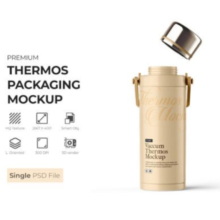
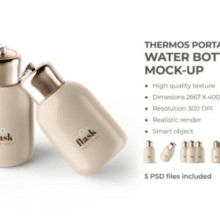
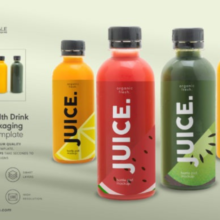
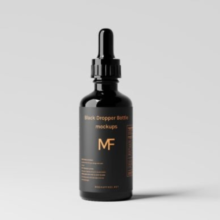
A mockup is essentially a pre-designed template (usually in Adobe Photoshop PSD format) that depicts a realistic scene — in this case, a thermos or water bottle — where designers can insert their own graphics such as logos, labels, patterns, and colors. These mockups often include smart objects and layered files that make adding and adjusting designs fast, intuitive, and visually convincing, mimicking the appearance of a real product photo.
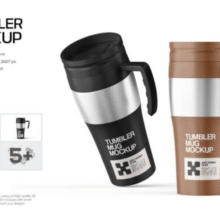
Portable water bottle and thermos mockups are tailored specifically for drinkware that’s designed to keep beverages hot or cold on the go. This can include anything from stainless steel travel mugs to vacuum-insulated water bottles and sleek everyday-use containers. Designers use these mockups to preview how their label or branding will look on the bottle before final production or photography.
Why Use a Thermos Mockup?
1. Realistic Presentation Without Expensive Photography
One of the biggest advantages of mockups is their ability to provide photorealistic results without the cost and hassle of a physical product photoshoot. Instead of hiring a studio photographer and purchasing multiple prototypes, designers can simply open a PSD mockup, drop in their branding, and produce professional visuals. This is especially valuable in early concept presentations or when pitching ideas to clients.
2. Faster Iteration and Design Workflow
Mockups are excellent for rapid iteration. You can test dozens of color schemes, logo placements, and packaging concepts in a fraction of the time it would take to generate physical samples. Smart objects in the PSD allow designers to swap graphics and update previews instantly.
3. Versatile Marketing Use
Once completed, mockup images can be repurposed for many design needs: e-commerce product pages, social media ads, branding presentations, printed catalogs, and promotional materials. A mockup doesn’t just present a design — it becomes the visual asset for marketing and communication.
4. Enhanced Portfolio and Client Communication
Showing your design on a real-looking bottle elevates your portfolio and makes it easier for clients to envision the final product on the shelf or screen. A flat label sheet doesn’t communicate context nearly as effectively as seeing that design wrapped around a bottle with realistic shadows and lighting.
Key Features of Effective Thermos Mockups
Smart Object Integration
Most quality mockups use smart objects — Photoshop layers that automatically conform your design to the correct shape, perspective, and lighting of the bottle. This makes editing simple: double-click, replace placeholder art with your design, save, and the mockup updates.
High Resolution
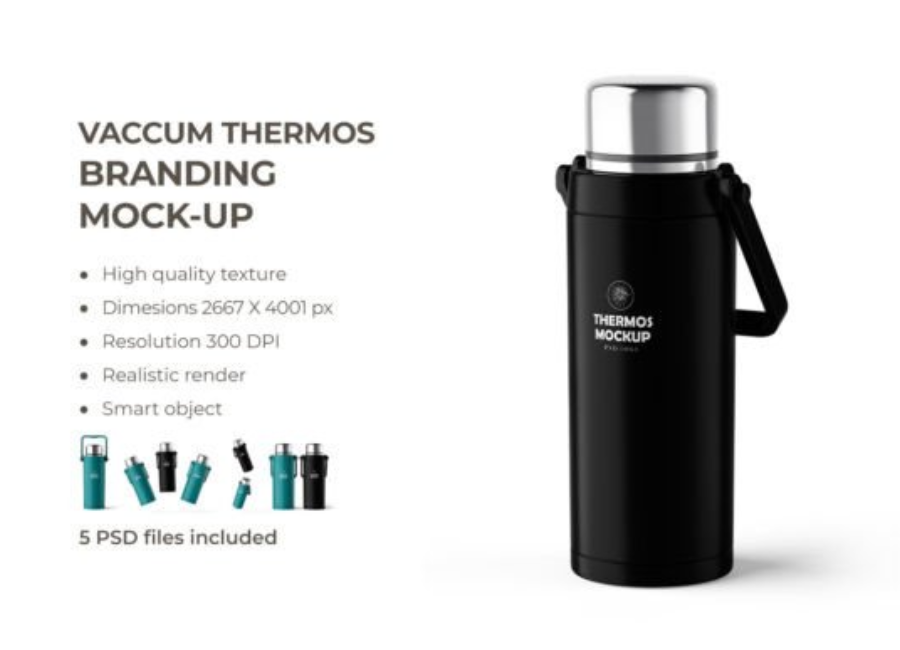
To ensure your visuals look crisp on prints and digital displays, good mockups are offered in high resolution (e.g., 3000×4000+ px at 300 DPI), allowing for detailed presentations.
Customizable Backgrounds & Bottle Colors
Many mockups include background layers and color adjustment layers so you can tailor the look to fit your brand aesthetic — from minimalist studio shots to lifestyle contexts.
Multiple Views and Angles
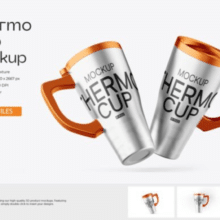
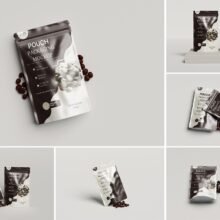
Some mockups offer multiple bottle angles, showing front, side, or perspective views. These are especially useful in portfolio spreads or online product galleries, giving viewers a comprehensive look at your design.
Types of Thermos & Water Bottle Mockups
There’s no one-size-fits-all when it comes to mockups — designers often choose based on context and brand needs:
Studio or Isolated Mockups
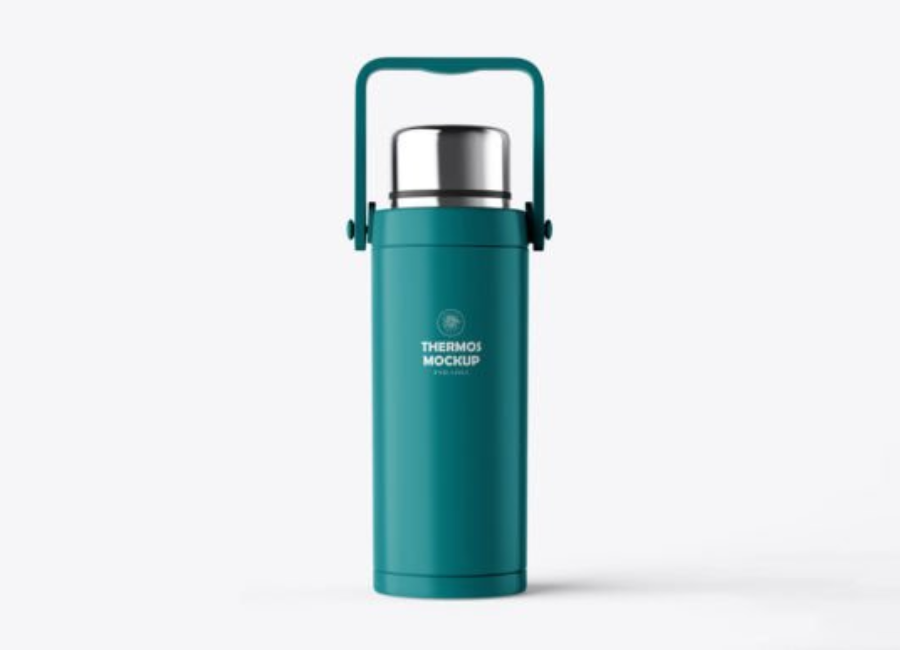
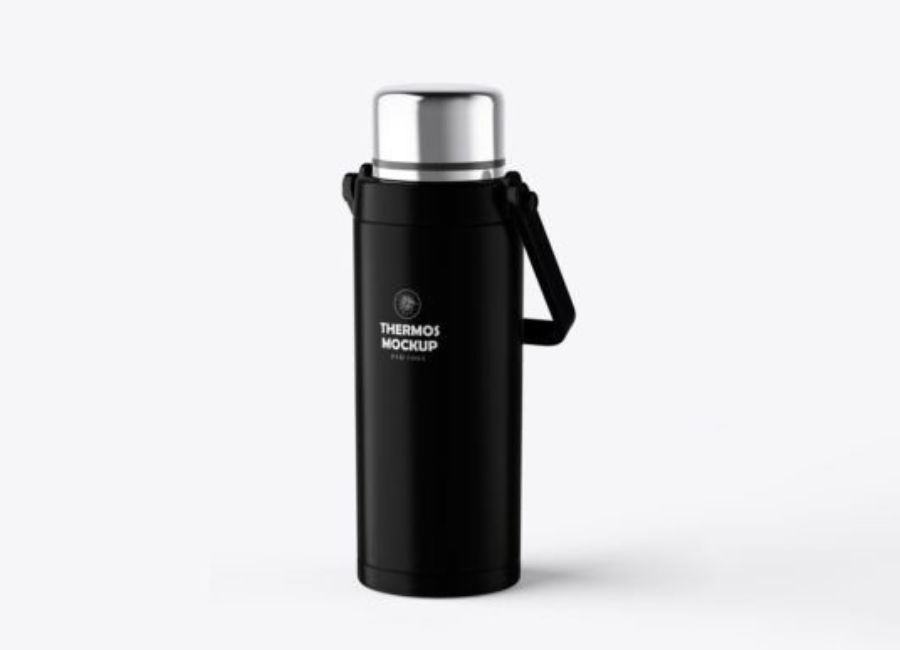
These offer clean, minimalist visuals of a single thermos against a neutral background — ideal for product listings and catalogue shots.
Lifestyle Context Mockups
Some mockups place the water bottle in a real-life scenario — on a desk, in a backpack setting, or being hand-held — helping brands demonstrate use and emotion rather than just product shape.
Multi-Object Mockups
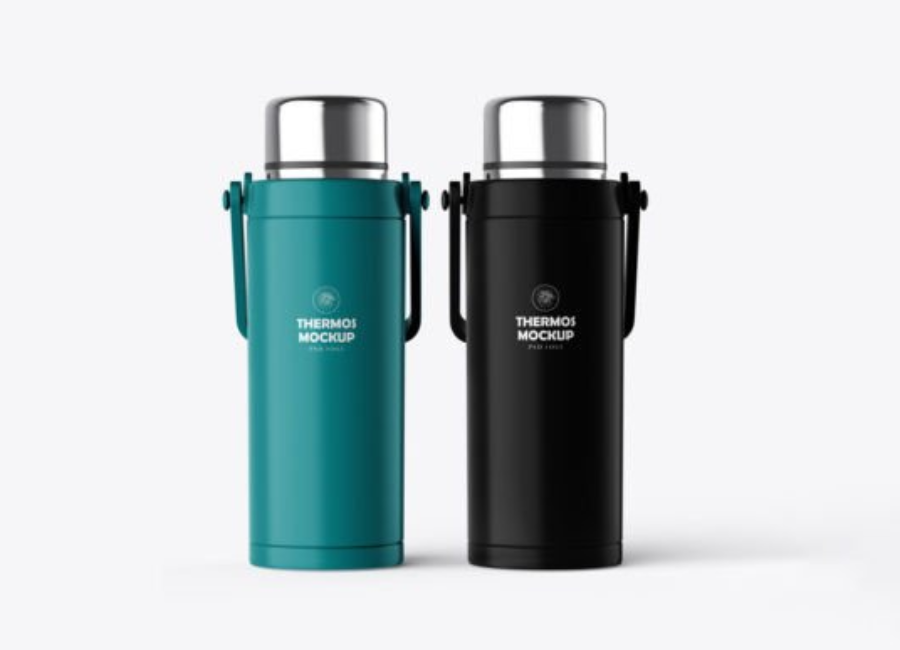
These allow showcasing of multiple bottles, colors, or versions in one scene. Useful when presenting a product line with varied designs.
Hand-Held or Action Shots
Mockups where the bottle is held or being used (e.g., with steam rising from a hot drink) add dynamic appeal, especially for outdoor, lifestyle, or fitness brands.
Step-by-Step: How to Use a Thermos Mockup in Photoshop
Working with mockups is designed to be easy, even if you’re new to Photoshop. Here’s a typical workflow:
1. Open the PSD File
Download a mockup file that fits your needs, then open it in Adobe Photoshop (CS4 or above often required).
2. Find the Smart Object Layer
The mockup will include layer groups labeled for the bottle body or label. These usually contain smart object layers — open these to insert your design.
3. Replace the Placeholder Design
Double-click the smart object thumbnail, delete the placeholder art, and paste your label design. Save and close the smart-object window — Photoshop updates your main mockup automatically.
4. Adjust Colors, Shadows & Lighting
If the mockup includes adjustment layers, use them to tweak bottle colors, background tones, and shadows so that your branding stands out and matches the intended mood or context.
5. Export Final Visuals
Once happy with your mockup, export the image in the required format (e.g., JPEG, PNG, or TIFF) for use in presentations, websites, or social media campaigns.
Best Practices for Thermos Mockup Presentation
Getting the most out of your mockup requires more than just inserting a logo:
Keep Design Context in Mind
Choose backgrounds and layouts that reflect the brand’s lifestyle: bold and colorful for adventure gear, minimal and clean for premium drinkware, or warm and cozy for coffee-focused concepts.
Use Multiple Angles
Including more than one perspective of your bottle design helps viewers understand how the label looks around the curved surface and how it behaves under different lighting and angles.
Balance Realism with Clarity
While overly dramatic backgrounds can be appealing, ensure your main design remains legible and central. The mockup should enhance — not distract from — your branding.
Match Your Mockup to the Brand’s Positioning
If the brand targets outdoors enthusiasts, choose mockups that reflect activity and ruggedness. For high-end products, sleek studio mockups with subtle lighting work better.
Where to Find Thermos Mockup Templates
There are both premium and free sources from which designers can download thermos and water bottle mockups:
Premium PSD mockups often offer higher quality graphics and more customization features — for example, detailed thermos bottle scenes that integrate smart objects and high resolution imagery.
Free mockups are widely available and can be downloaded for personal or commercial use, with editable PSD files ready for smart object integration.
Online design marketplaces and mockup libraries also host various bottles and thermos scenes with multiple angles and ready-to-edit PSD formats.
Always check license terms to ensure you have rights for commercial usage if required.
Conclusion
Thermos portable water bottle mockups are an essential tool in modern branding and packaging design. They empower designers and businesses to produce professional, photorealistic visuals quickly and affordably — improving communication with clients, enhancing marketing materials, and bringing design ideas to life without costly photoshoots.
Whether you’re creating a sleek bottle for a fitness brand, drafting promotional visuals for travel gear, or testing label designs for a coffee-focused thermos, mastering mockups will elevate your presentation quality and streamline your workflow.
In a world where visuals compete for attention at first glance, high-quality mockups help your product stand out — long before the bottle ever hits the shelf.