Tin Can PSD Mockup Set for Display — A Complete Guide for Designers and Brands
In the world of Tin Can PSD Mockup Set for Display packaging design, presentation is everything. Before a product ever hits the shelves or appears in an online store, the visual representation of that product—especially packaging—greatly influences how clients, retailers, and consumers perceive it. That’s where Tin Can PSD mockup sets for display play a pivotal role. These files allow designers to professionally showcase their packaging concepts in realistic and attractive ways without the need for costly prototypes or photoshoots.
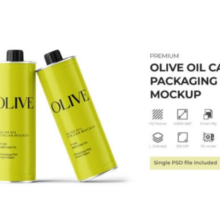
A PSD mockup is essentially a pre-designed Photoshop template with editable layers and smart objects that make it easy to insert your own artwork, adjust colors, and create lifelike presentations quickly and efficiently. When it comes to canned goods and other products packaged in tin cans, mockups let you place your label, branding, or artwork directly onto a realistic can surface so stakeholders can see a polished visual before production.
Why Tin Can Mockups Matter in Packaging Design
1. Save Time and Money
Traditional prototyping—printing labels and wrapping real cans—takes time and budget. A PSD mockup lets designers visualize multiple options in minutes instead of days, helping refine concepts before any physical mockup is produced.
2. Professional Client Presentations
Clients expect refined visuals. A tin can displayed in a mockup with realistic lighting, shadows, and perspective speaks more convincingly than a flat label design. Mockups can be integrated into pitch decks, portfolios, websites, or print brochures to elevate the visual quality of your work.
3. Versatile Display Options
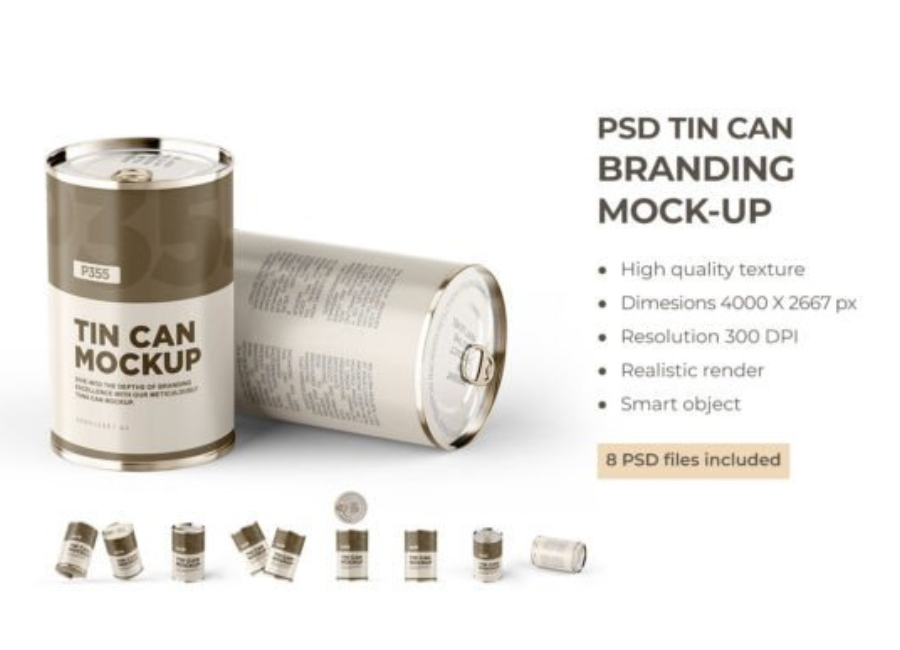
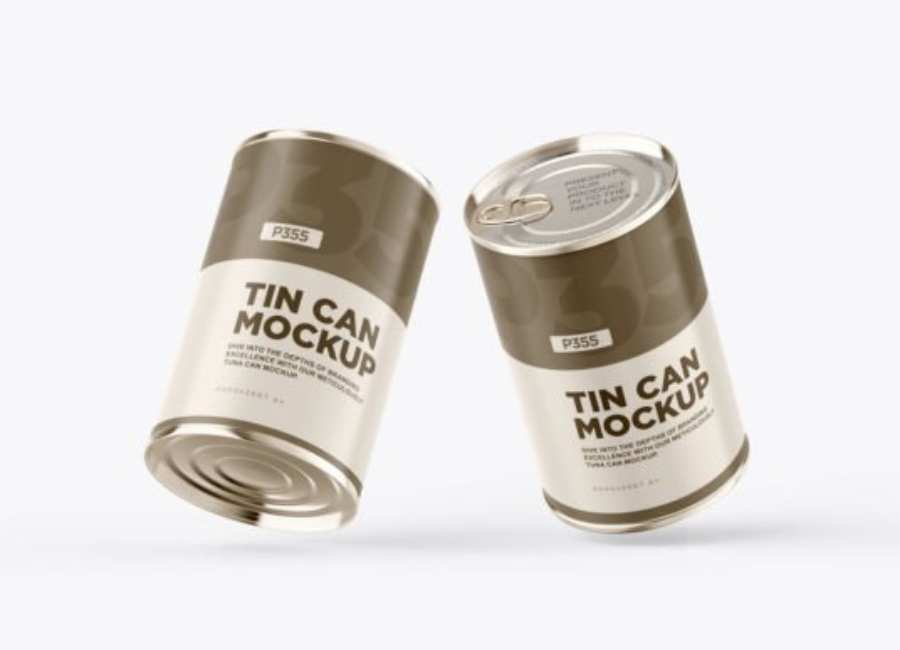
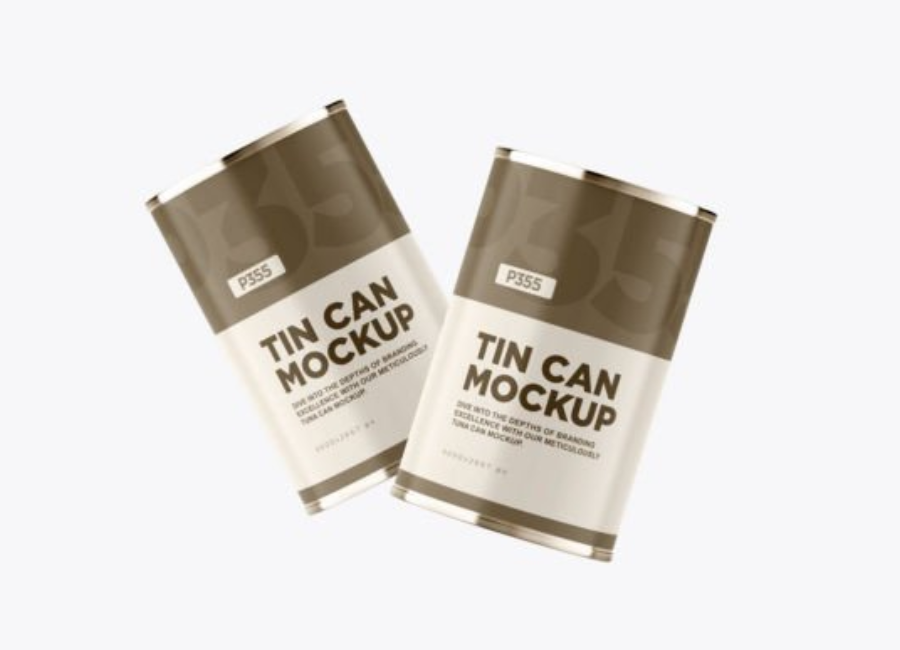
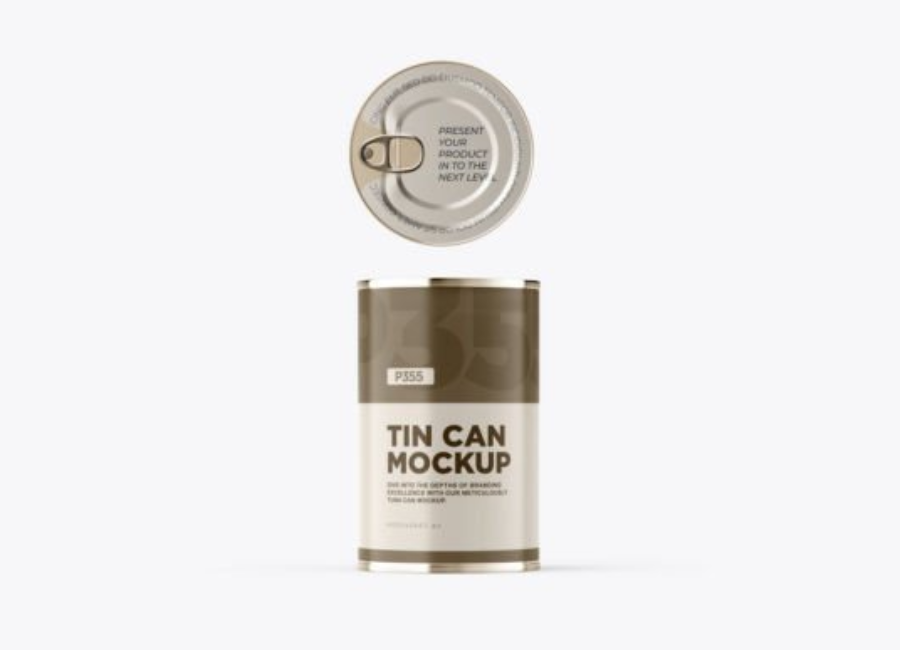
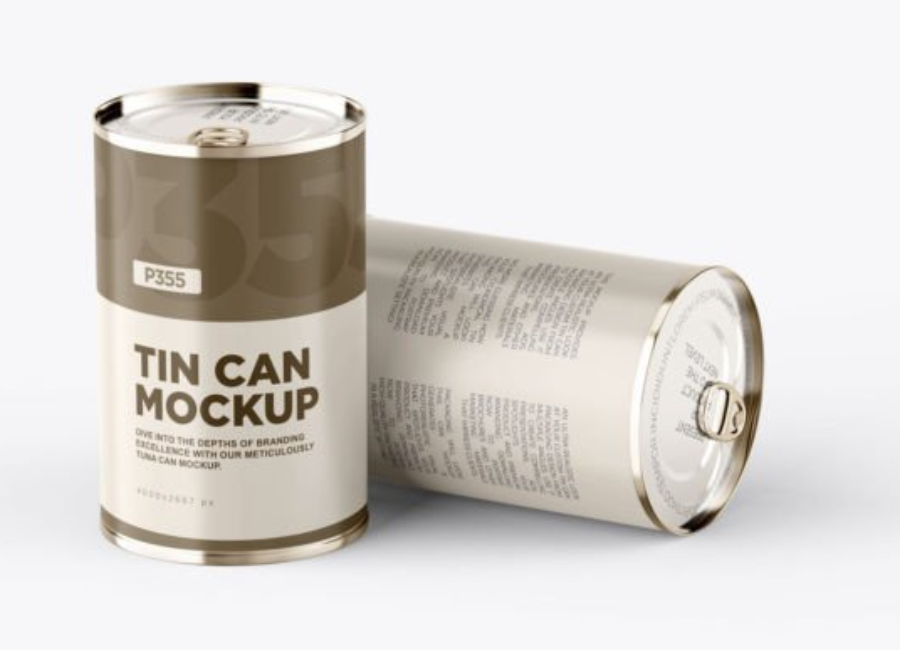
Mockup sets often include multiple scenes and perspectives — from single can close-ups to group scenes, different angles, and varied lighting setups. This variety adds flexibility when showing a design in different contexts, such as online stores, marketing materials, or portfolio galleries.
Key Features of a Tin Can PSD Mockup Set
Not all mockups are created equal. Here are the core elements that you’ll typically find in a high-quality mockup set:
✔ Smart Object Layers
Smart objects are the backbone of PSD mockups. They automatically wrap your design around the curved surface of the tin can, preserving perspective and reflections with minimal effort. This means you simply double-click the smart object, place your artwork, save, and Photoshop does the rest.
✔ High Resolution
Professional PSD mockups come in high pixel dimensions (e.g., 4000+ px wide) and at high DPI, ensuring crisp visuals for both web and print presentations.
✔ Editable Backgrounds and Shadows
Adjustable backgrounds help match the mockup to your brand style or campaign theme, while separated shadows add realism and depth. This gives you control over mood and presentation context.
✔ Multiple Can Views and Scenes
Premium sets can include 9–13+ scenes with different lighting and angles — from simple isolated shots to styled compositions — broadening your display options.
Common Types of Tin Can PSD Mockup Set for Display Sets
Tin can mockups vary in style and purpose. Here’s an overview of the main categories:
1. Single Can Mockups
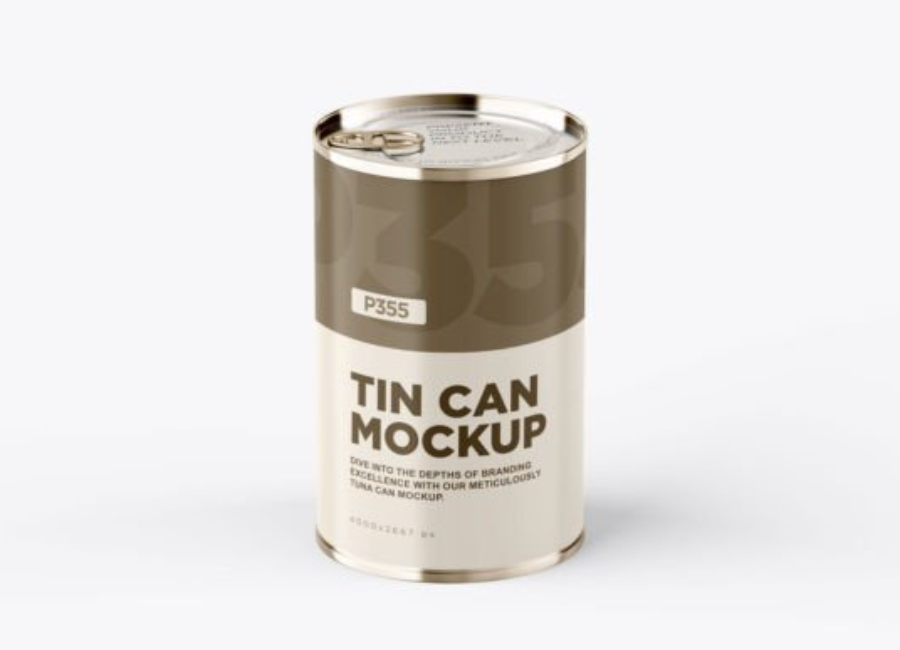
These focus on a single can, perfect for simple presentations, label showcases, or when you want maximum clarity of your design.
2. Multi-Scene Sets
Comprehensive mockup bundles include multiple views — front, perspective, top-down, and even lifestyle scenes — helping maintain visual consistency across a brand’s presentation.
3. Themed or Product-Specific Mockups
Certain mockups are tailored for specific product types like coffee tins, seafood cans, vegetable cans, or specialty tins, giving designers context-appropriate visuals.
4. Free vs. Premium Mockups
There are many free mockup PSD files available online (from sites like GoodMockups or Behance), useful for practice or small projects. Premium sets often offer higher resolution, more scenes, and greater customization flexibility.
How to Use a Tin Can PSD Mockup Set in Adobe Photoshop
Using a mockup is easier than most people think. Here’s a step-by-step workflow:
Step 1: Open the PSD File in Photoshop
Once downloaded and unzipped, open the PSD mockup file in Adobe Photoshop.
Step 2: Locate Smart Object Layers
Find the layer group labeled something like “Place Your Design Here” or similar. These layers are the smart object placeholders where your artwork will go.
Step 3: Insert Your Artwork
Double-click the smart object thumbnail. It opens in a new window where you can paste or design your label artwork. Save and close this window to see your design applied to the can.
Step 4: Customize Colors and Backgrounds
Many mockups allow you to change tin body colors, lid color, background hues, and shadows through adjustment layers — making it easy to match your brand palette.
Step 5: Export Final Images
Export your finished mockup as high-resolution PNG or JPG for use in portfolios, client presentations, or ecommerce listings.
Best Practices for Tin Can Mockups
To make the most of mockup designs:
Choose high-resolution files for print-ready visuals.
Use consistent lighting and backgrounds across your mockup set for branding cohesion.
Match can proportions to real products to avoid misleading clients about size.
Include multiple angles in your presentation to provide a complete view.
Practical Applications for Tin Can Mockups
Branding and Packaging Design
Design agencies and freelancers use mockups to showcase concepts for canned food, beverages, pet food, or specialty tins, helping clients visualize packaging in real contexts.
Marketing and Ecommerce
Mockups serve as product visuals on online marketplaces, promotional banners, and social media posts — often without the expense of an actual product photo shoot.
Portfolio and Presentation
Designers often include mockups in their portfolios to demonstrate packaging work, showing attention to detail and presentation skills.
Conclusion
A Tin Can PSD mockup set for display is an indispensable tool for modern packaging design workflows. It offers speed, realism, and easy customization, enabling designers to bring their label and branding concepts to life with minimal effort. Whether you’re preparing client presentations, building your portfolio, or creating ecommerce visuals, mockups help bridge the gap between concept and reality — presenting your designs in the most professional light possible.