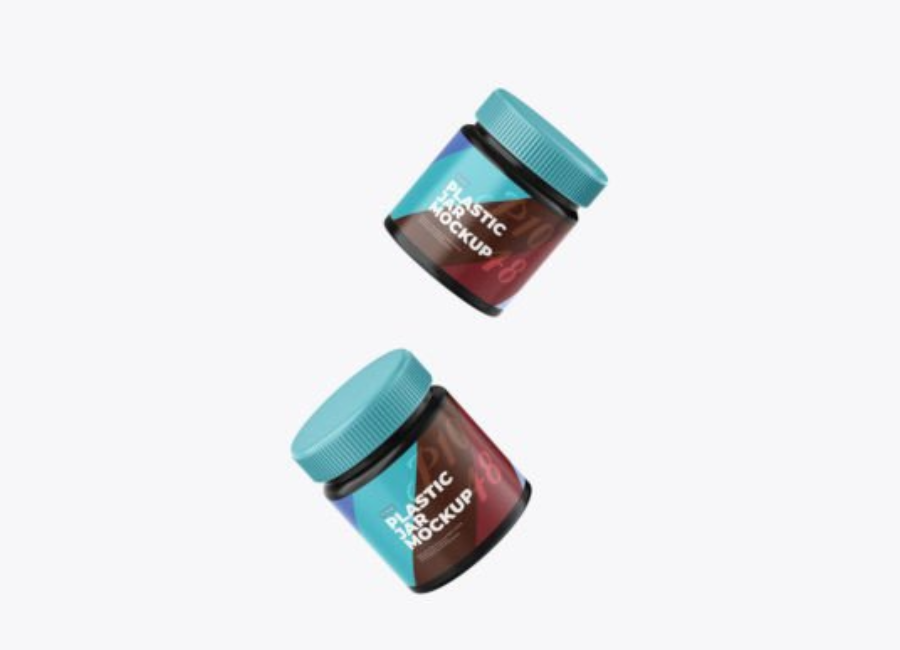
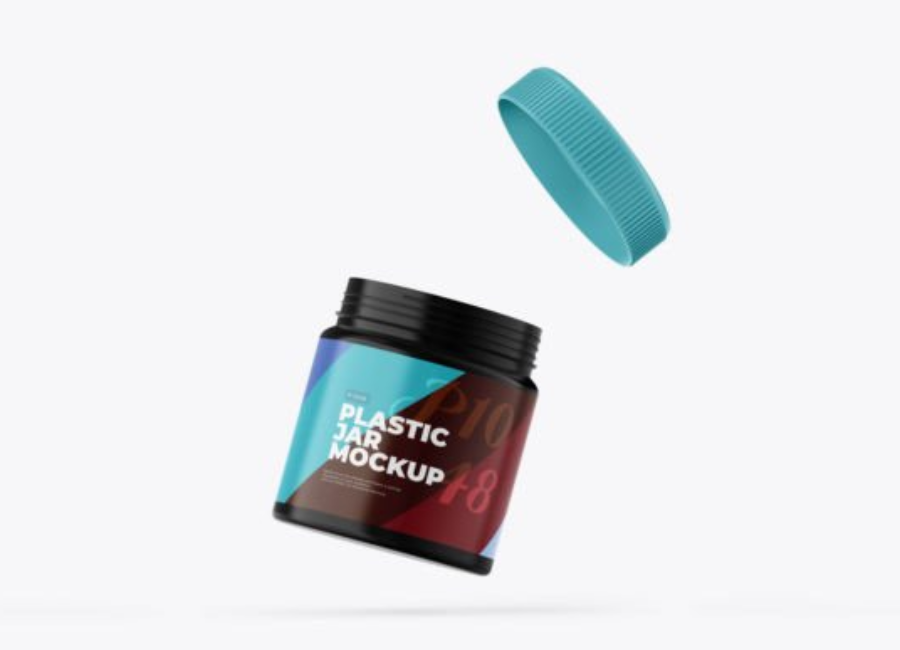
Plastic Container Jar Mockup: A Complete Guide for Designers & Brands
In the competitive world of modern product design, presentation matters just as much as the product itself. Whether you’re creating packaging for cosmetics, food items, supplements, or lifestyle products, showcasing your design in a realistic, professional way can make all the difference in client meetings, pitches, portfolios, and online product pages. This is where a Plastic Container Jar Mockup becomes indispensable.
A mockup in graphic design is a high‑resolution, editable template—usually in PSD format—that lets you easily place your branding, labels, and artwork on a photo‑realistic 3D representation of the packaging. For jars and containers, this means seeing your design exactly as it might appear in real life before investing in printing, photography, or production.
What Is a Plastic Container Jar Mockup?
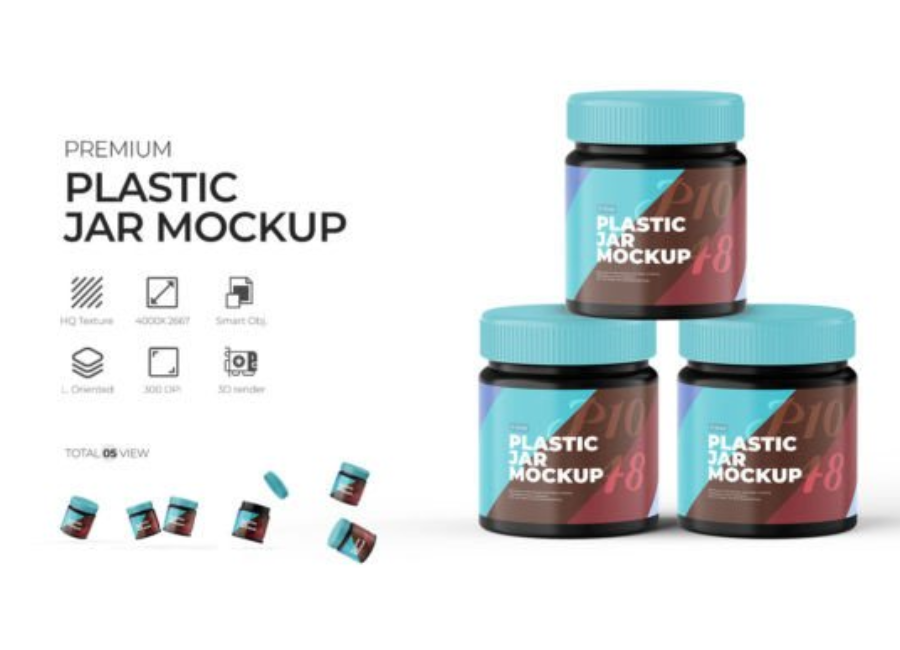
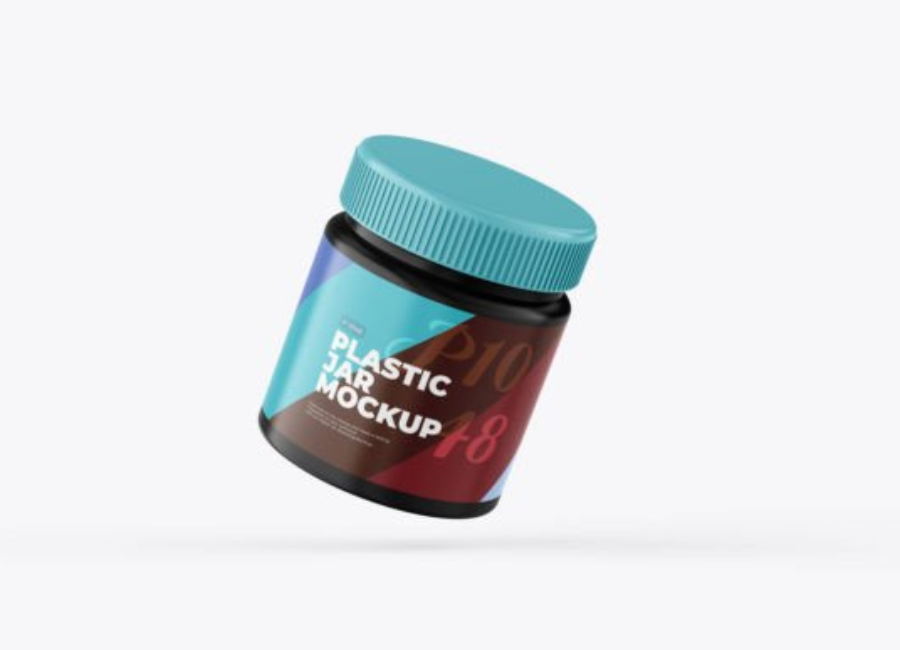
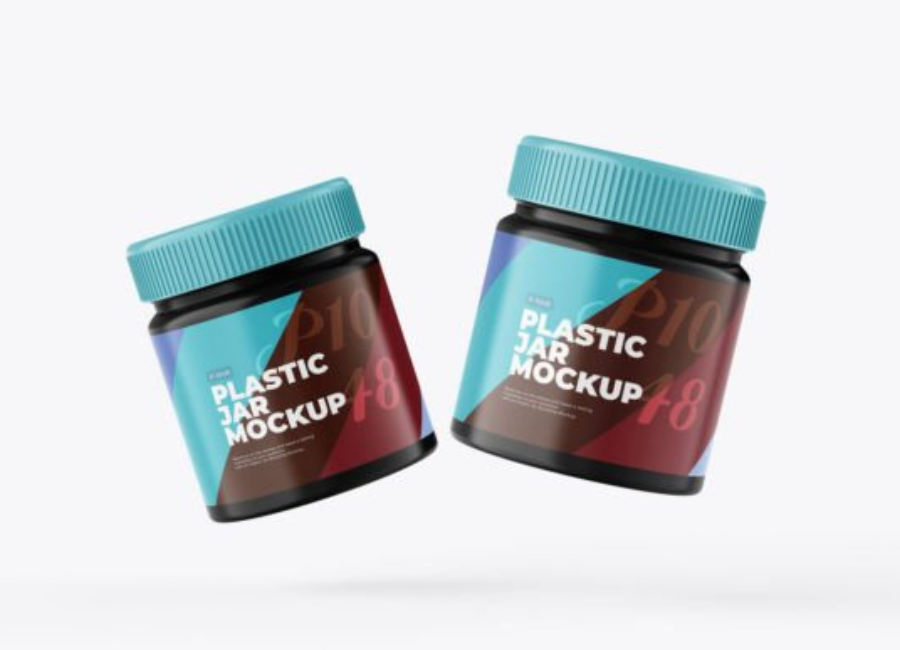
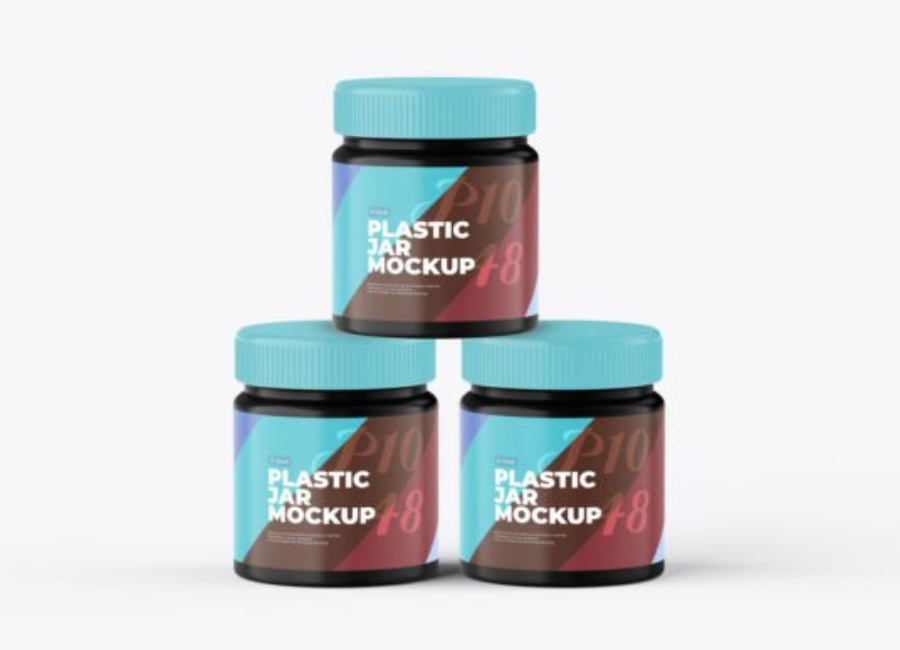
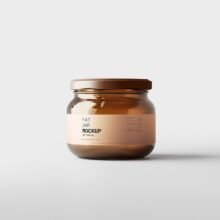
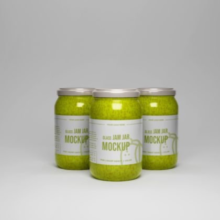
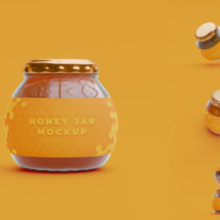
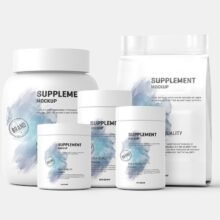
A Plastic Container Jar Mockup is a digital PSD template that contains a layered file with smart object layers and editable elements designed to represent plastic jar packaging realistically. These jars are common across many consumer categories—from protein powder and vitamins to skincare creams and honey—and a mockup helps visualize how a brand’s label, logo, and other graphics will look on the actual container.
Most mockups let you change the jar’s body design, lid, label, colors, lighting, and background. This makes them flexible tools for designers working in branding, packaging, or marketing.
Why Plastic Jar Mockups Matter
1. Visual Realism for Client Presentations
Flat artwork—like Illustrator files or board designs—often fails to communicate how a finished product will feel in physical space. Mockups add depth, lighting, and shadow effects to create a sense of realism that helps clients see the final product before production begins.
2. Faster Iteration and Feedback
Using smart object layers in Photoshop, designers can quickly test different label designs, color schemes, or typography options without re‑rendering or reshooting physical prototypes. This accelerates feedback cycles and keeps projects moving faster.
3. Cost‑Effective Prototyping
Creating physical prototypes for every design variation is expensive and time‑consuming. Mockups remove that barrier, enabling designers to refine concepts digitally at a fraction of the cost.
4. Versatile Marketing Assets
Mockup images are useful beyond design approval—they can be used in ecommerce listings, advertising campaigns, and social media promotion. Professional visuals help increase perceived product value and brand credibility.
Core Features of a Good Jar Mockup PSD
Not all mockups are created equal. To maximize impact, look for files with these key features:
✔ Smart Object Integration
Smart objects allow you to replace the placeholder design with your own label or artwork by simply double‑clicking the layer and inserting your graphics. Photoshop automatically maps it to the jar’s surface.
✔ High Resolution
Professional mockups often come in high pixel dimensions (often 4000+ px) and 300 DPI resolution so that your visuals stay crisp in both digital and print formats.
✔ Background & Color Controls
Editable backgrounds and color layers give you full control over the scene, allowing visuals to match your brand look and context—whether minimal white, studio lighting, or brand‑themed backdrops.
✔ Multiple Angles or Styles
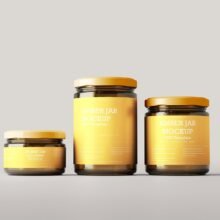
Comprehensive mockups can include different jar shapes, angles, and lighting setups, making it easier to present a range of product variations and packaging situations.
How to Use a Plastic Container Jar Mockup (Step‑by‑Step)
1. Open the PSD in Photoshop
Most mockups are layered PSD files that can be opened in Adobe Photoshop (version CS5 or higher for best compatibility).
2. Locate Smart Object Layers
Look for layers labeled something like “Place Your Design Here” or “Jar Label.” These contain the smart objects where your artwork will be inserted.
3. Insert Your Design
Double‑click the smart object layer and paste or design your label and branding inside the opened window. Save and close the smart object to see the design applied to the jar.
4. Adjust Colors and Background
Most mockups include grouped layers for background colors, shadows, and highlights. Adjust these to suit your branding or presentation context.
5. Export Your Final Visual
When satisfied, export your final mockup image as a PNG or JPG for use across presentations, web listings, or marketing campaigns.
Practical Applications
Product Branding
Jar mockups are ideal for showcasing brand labels, logos, product names, and design elements in brand presentations and client pitches.
E‑Commerce & Marketing
Turn your high‑quality mockup into a display image for online marketplaces, product catalogs, and social ads. Professional visuals boost consumer trust and engagement.
Design Portfolios
Graphic designers use mockups to present packaging concepts in portfolios and resumes, highlighting their ability to deliver polished, market‑ready visuals.
Tips for Better Mockup Results
Use high‑resolution assets: Prioritize mockups with 300 DPI resolution for print and digital versatility.
Maintain lighting consistency: If using multiple mockup scenes in one project, keep lighting uniform for visual coherence.
Test variations: Show clients 2–3 label color and layout options for better decision‑making.
Conclusion
A Plastic Container Jar Mockup is an essential design tool that bridges the gap between flat artwork and real‑world packaging perception. With editable PSD files and smart object technology, designers can quickly visualize, refine, and present packaging concepts in a polished, photorealistic format. Whether you’re working on branding, marketing, or ecommerce visuals, these mockups make your design stronger, clearer, and more compelling—helping you connect with clients and consumers alike.